
Document Definitions
The Document Definitions screen allows you to create and manage document types, which serve as the indexing destinations for incoming documents. You can create as many document definitions as needed to support your business processes.
You can access this area by navigating to:
XDOC Admin → Projects Tab → Project Repository → Document Definitions.
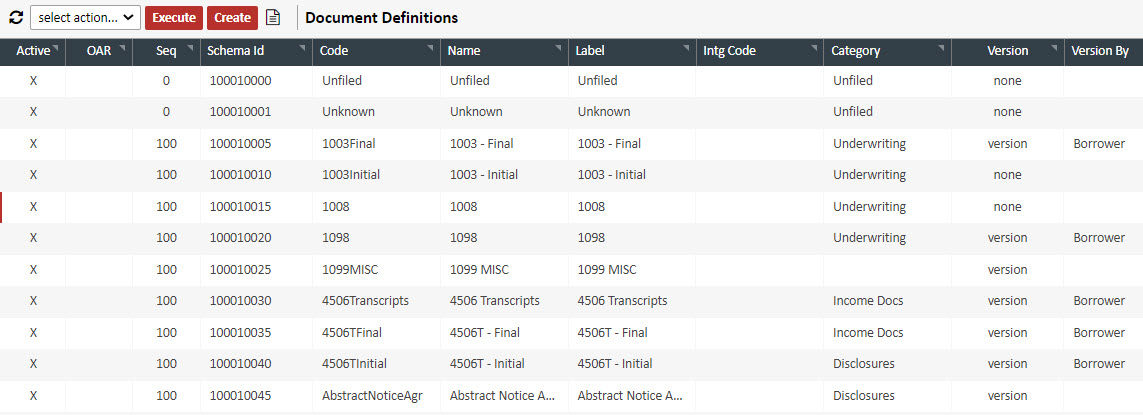
Creating and Managing Document Definitions
The Document Definition screen allows you to create, configure, and maintain document types. These definitions determine how incoming documents are indexed and displayed within XDOC. You can create as many document definitions as needed to support your business workflows.
Creating a New Document Definition
1. Open the Editor
From the Document Definition grid, click CREATE.
The Document Definition Editor will appear.
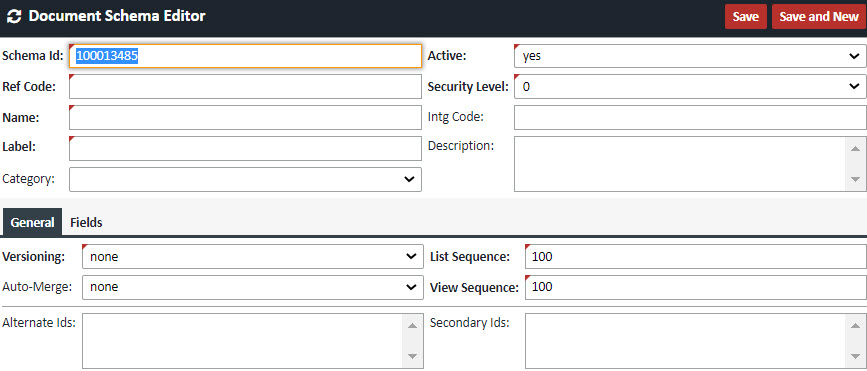
2. Complete the Header Fields
Field Properties
| Field | Definition |
|---|---|
| Schema ID | Unique ID for the document type. Auto‑populated with the next available number. |
| Ref Code | Additional code used in document naming and barcode matching. Avoid using spaces. |
| Name | The name assigned to the document type. |
| Label | The value displayed in dropdown lists during indexing. Typically the common name or short name of the document. |
| Category | Defines how documents are grouped in the viewer. (See the “Document Categories” section of documentation.) |
| Active | Yes/No. Determines whether this document type appears in indexing dropdown lists. Inactive types still appear in the Viewer. |
| Security Level | Not currently used; can be ignored. |
| Intg Code | Customized integration code, used only if instructed by XDOC Customer Support. |
| Description | Optional description of the document type. |
| General Tab | |
| Versioning | Choices are None, Version, and Version and Automerge: None – Multiple documents appear as separate entries. All versions are sent to bundling recipients. Version – Documents appear as one entry with previous versions nested. Only the active version (radio button selected) is sent to bundling. Version and Automerge – All pages are merged into a single document. Merge order is determined by the Auto-Merge setting. |
| Auto-Merge |
Valid only if Versioning = Version and Automerge
All merged pages are sent to bundling. |
| (Pick) List Sequence |
Controls the order of this document type in indexing dropdowns.
|
| View Sequence | Controls the order in the Viewer (organized by Category). Same behavior as (Pick) List Sequence. |
| Alternate Ids | Comma‑separated list of alternate identifiers (commonly used for barcoding). |
| Secondary Ids | Used when a document provider uses the same code for both application and closing documents. Allows routing the same identifier to two different document types based on admin settings. |
3. Assign any document fields (if applicable)
Document fields allow additional classification such as borrower assignment, document status, or approval tracking.
To assign fields:
- Open the Fields tab in the Document Schema Editor.
- Select a field and click ADD first/last, or double‑click to add it.
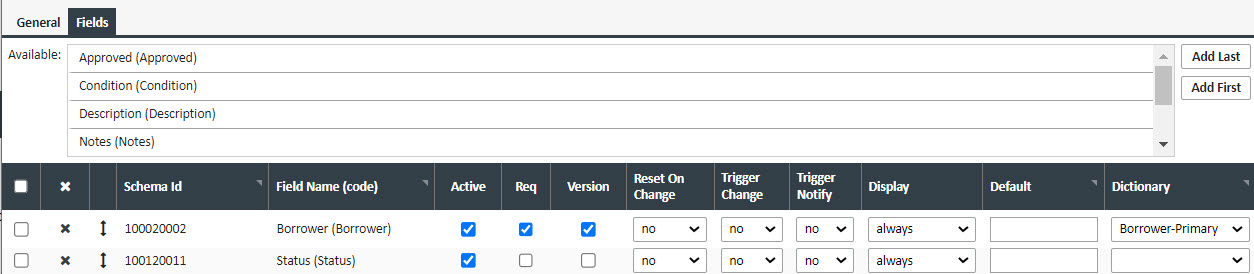
Field Properties
| Field Label | Definition |
|---|---|
| Active | Determines whether the field is active. |
| Schema Id | Numerical code assigned when the field was created. |
| Field Name (code) | Name of the field |
| Active | Indicates whether the field can be used in this document definition. |
| Required | If checked, the field must be completed during indexing. |
| Version | Used only when the doc is versioned. Helps treat fields like borrower as separate documents for bundling. (Should be checked for borrower‑related fields.) |
| Reset on Change Trigger Change |
Reset on Change and Trigger Change work together. They control which fields are "reset" to their "default value" when a document changes. A document is "changed" when one of the following occurs:
|
| Trigger Notify | Reserved for future use. |
| Display | Controls visibility and editability in the Property Editor. |
| Default | Default value (checkbox fields: 0 = unchecked, 1 = checked). |
| Dictionary | Associated list of values, if applicable. |
Save
When all fields are complete, click SAVE.
Deactivating a Document Definition
Deactivation preserves historical data while preventing new documents from being assigned to the definition.
Two methods:
1. From the Document Schema Editor
- Open the document definition.
- Set Active = No.
2. From the Document Definitions List
- Check the box next to the Schema ID.
- Choose de-activate from the Select Actiondropdown.
- Click EXECUTE.
Deactivated document types:
- Do not appear in indexing dropdowns
- Do remain visible in the Viewer and available for bundling
Deleting a Document Definition
To delete a definition:
- Open Project Repository → Document Definitions
- Select the document via the checkbox
- Choose delete from the Select Action dropdown
- Click EXECUTE
Important Caution
You cannot delete a document definition that has documents associated with it.
All documents must be reassigned before deletion.
If you encounter issues, contact XDOC Customer Support.