
Document Thumbnails and Thumbnail Toolbar Overview
Document thumbnails allow you to quickly view multiple pages at once. Using the thumbnail toolbar, you can easily navigate through pages, reorder them, and rotate pages as needed. Thumbnails also let you move or copy pages to other documents within the same loan.
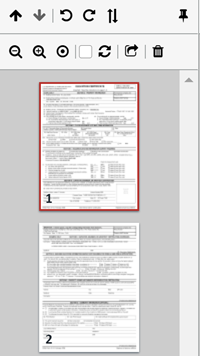
While working in XDOC, you will encounter various page icons that perform actions on your pages and documents. The icons you see may vary depending on where you are in the application and the steps you’ve taken to get there.
To help you navigate these options, we’ve created a cumulative glossary of icons. Because there are several icons you may encounter, you may find it helpful to refer back to this page frequently as you work in the program.
| Icon | Description |
|---|---|
 |
Move selected page(s) up |
 |
Move selected page(s) down |
 |
Rotate pages left |
 |
Rotate pages right |
 |
Rotate pages 180 degrees |
 |
Panel Docker – Docks the panel to make the page viewer larger |
 |
Zoom in – increases the image size |
 |
Zoom out – decreases the image size |
 |
Zoom reset – reset zoom to default |
 |
Select/Unselect All - Selects and/or unselect's all of the pages in the document. Checking this box applies changes to all of the pages in the document rather than the individual document displayed. |
 |
Reset – Resets the page sequence to the last saved place |
 |
Page Move/Copy - Opens a dialog box for moving/copying selected pages to another document in the loan |
 |
Delete – Deletes the page/document |