
Accessing the Document Viewer
Ways to Access the Document Viewer
1. Search Tab
- Log in to XDOC via the main login screen.
- Click the Search button at the top.
- Search for the loan in question.
- Click on the loan number to open the viewer.
Tip:
If you are logged in through an LOS integration and want to use the Search tab:
- Click the Home button (upper right corner) to return to the main XDOC interface.
2. Viewer Tab
- If available, you can directly click the Viewer tab in XDOC after logging in.
3. LOS Integration
- If your LOS is integrated with XDOC, you can access the viewer directly from the LOS interface.

Steps to Search for a Loan
-
Enter Loan Details
- Type the loan number or borrower name in the appropriate fields.
- Click SEARCH.
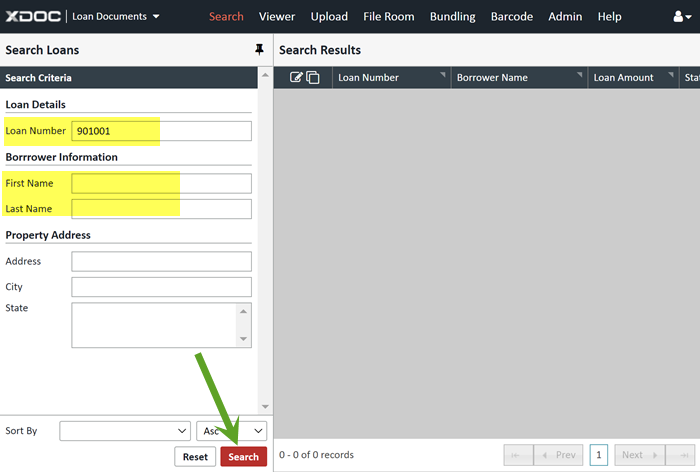
2. View Search Results
- A list of matching loans will appear.

3. Open the Loan
- Double-click the row for the loan you want to view, or
- Click one of the icons on the left:
 - Opens the Viewer in a new browser tab.
 - Opens the Viewer in a new window.
Viewer Tab
- Clicking the Viewer tab will open the last loan you accessed in XDOC.

LOS Integration
- For partner or custom integrations, refer to your LOS provider’s instructions for accessing XDOC.