
Sorting and Viewing Documents with the Doc List Toolbar
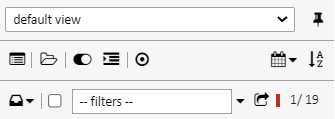
Documents in the Document List can be sorted and viewed in a variety of ways with the Document List Toolbar. The sorting and viewing options are:
| Icon | Description |
|---|---|
 - Four lines - Four lines - Three Lines - Three Lines - Two Lines - Two Lines - One Line - One Line |
Toggles the amount of document information shown. User will either see all document information, including all document versions and fields, Three lines (all Fields), Two lines of information (doc name and date/time), or one line of information (doc name) |
 |
Expands and collapses Document Buckets |
 |
Expands and collapses Document Categories |
 |
Collapse all and go to active doc. If buckets or categories are collapsed it will open just the bucket/category for the active doc. |
 |
Bucket Selector – Alternate way to move documents between buckets |
 |
Select All button – Will highlight all docs (for Administrators only) |
 |
Document Copy/Move - Will launch a dialog box to copy or move documents to one or more loans |
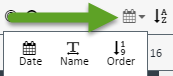 |
Clicking on the calendar like icon will allow users to sort documents by either date, order (defined by document definitions sequence number), document label (name), or by a field definition such as borrower, tax year, etc Sorting by Date - When the user selects Date as the sort option, the system sorts strictly by the document’s Date field. Sorting by Name - When sorting by Name, the sort is based on the Document Type Label, not on the date. This sort option does not consider the Date field at all. Sorting by Order - When sorting by Order, the system uses the View Sequence value defined on the Document Definition (see the View Sequence field Document Definitions - View Sequence). Documents are sorted according to this configured sequence number. |
 |
Sort alphabetical A to Z (ascending). Or if you click on it again, it will sort Z to A (decending) |
 |
Turns Category grouping on/off |
 |
Drop down menu for View Stacks, if enabled |
 |
Filters Dropdown – Filter by several field definition values, including “empty value” and “has field” - allows users to only see those values for easier filtering |
 |
Panel Docker – Docks the panel to make the page viewer larger |