
To Move a Document to Another Loan
Move a Document to Another Loan
-
-
Highlight the Document
- In the Document List (left side of the screen), select the document you want to move.
-
Open the Fields Tab
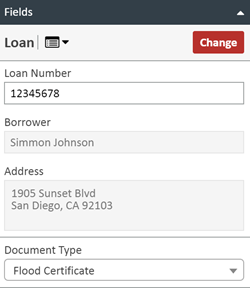
- On the right side of the Document Viewer, click the Fields tab.
-
Click CHANGE
- In the upper-right corner of the Fields tab, click the CHANGE button.
-
Search for the New Loan
- Use the search feature to find the new loan.
- When you locate the correct loan in the search results, double-click it.
→ The new loan number will appear in the Loan Number field.
Alternate Method:
- Type the new loan number directly into the Loan Number box and tab out of the field.
-
Update Additional Fields
- Modify any other fields as needed (e.g., borrower name, document type).
-
Click UPDATE
- The document will be moved to the new loan.
-