Reports Tab
Reports Tab
The Reports tab in XDOC provides access to a set of simple, one-touch reports that offer insights into system activity and usage.
Key Features:
- All reports are generated in .csv format, making them easy to open in Excel or import into other data analysis tools.
- Reports are designed for quick access to commonly needed information.
Custom Reports:
If your organization requires additional or specialized reports:
- Contact XDOC Customer Support.
- They can submit an enhancement request on your behalf to evaluate and potentially add the requested report to the system.
Using the Reports Screen
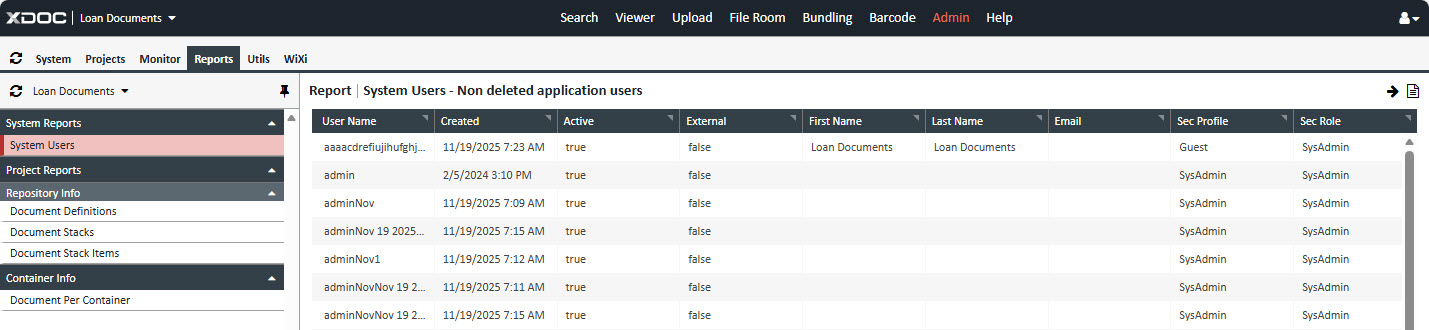
The Reports screen in XDOC is designed for simplicity and quick access to system data. Report names are listed on the left-hand side of the screen.
To Run a Report:
- Click the name of the report you want to run from the list on the left.
- A preview of the report will appear in the main window.
- Click the "Download CSV" icon located at the top-right of the screen (just to the right of the arrow icon).

3. The report file will begin downloading and appear at the bottom of your browser window.
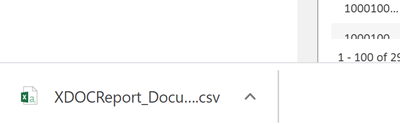
4. Once downloaded, you can open and work with the report in any spreadsheet application (e.g., Excel).
Tip: All reports are in .csv format for easy sorting, filtering, and analysis.
Container Info
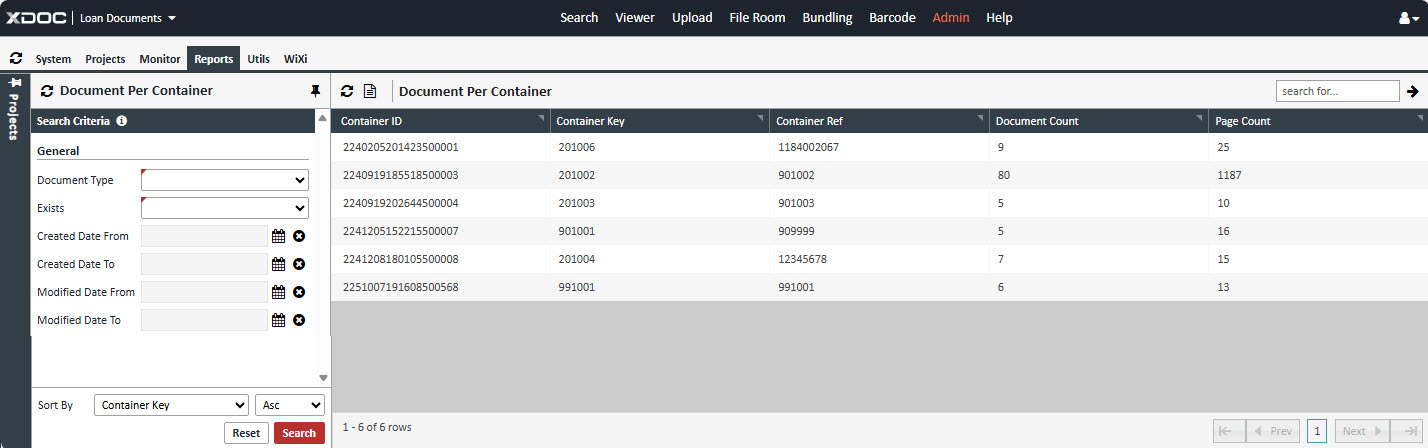
The Documents Per Container screen in the Container Info grouping will display all the documents associated with a container and allows you to filter them using specific criteria.
Search Criteria
-
Document Types
- A dropdown listing all XDOC Document Types.
- Select only one to narrow your search.
-
Exists
- Options:
- Does Exist – Show containers that have the selected document type.
- Does Not Exist – Show containers that do not have the selected document type.
- Options:
-
Created Date Range
- Created Date From: Start date for document creation (format:
mm/dd/yyyy). - Created Date To: End date for document creation.
- Created Date From: Start date for document creation (format:
-
Modified Date Range
- Modified Date From: Start date for last modification.
- Modified Date To: End date for last modification.
-
Document Count: This represents the number of classified documents, not the number of document types.
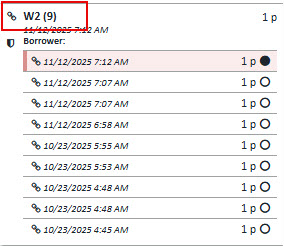
- Example: If all W2-related files are grouped under one classified document called “W2,” then even if there are 9 W2 document types, the count will show 1.
-
Page Count: This reflects the total number of pages across all documents in the container, regardless of type.
So, the counts are based on actual documents and pages, not the number of document types available in the system.