Transactions
AIVA Transactions
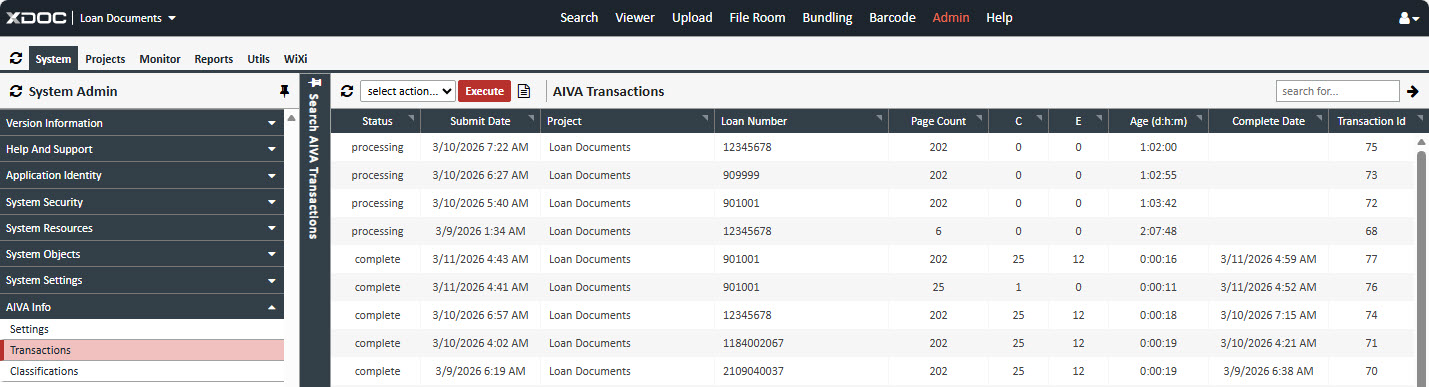
This screen displays all AIVA Doc transactions and provides the following options:
- View Details – Review transaction information.
- Download Documents – Access and save associated files.
- Cancel (Purge) Transaction – Remove a transaction if necessary.
Purging
To purge or cancel a transaction:
- Highlight the row of the transaction you want to purge.
- From the Select Action dropdown, choose Purge.
- Click the red Execute button.
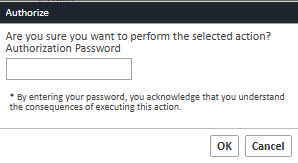
- A message will appear prompting you to authorize the purge by entering your Admin password.
- Click OK to confirm and proceed, or Cancel to abort the purge and return to the Transactions screen.
Important:
Cancelling a transaction will stop any future updates for the selected loan and document. Please confirm with XDOC Customer Support before performing this action.
Screen & Column descriptions:
- Status (processing / complete)
Displays the current transaction status for the highlighted loan. - Submit Date
The date and time when the initial AIVA Doc request transaction was initiated. - Project
Indicates the document type: - Loan Documents (default)
- Servicing Documents
- Loan Number
The LOS loan number associated with the transaction. - Page Count
Total number of pages submitted in the transaction. - C (Classifications)
Total number of Document Classification documents in the transaction. - E (Extraction Data)
Total number of documents where Extraction Data exists in the transaction. - Age (d:m:h)
Number of days:hours:minutes elapsed since the Submit Date to the current system date if no response has been received. - Complete Date
The date and time when the transaction was fully completed. - If the date and time is empty, the transaction is still processing with the AIVA Doc team.
- Transaction Id
Auto-generated number for each transaction created.
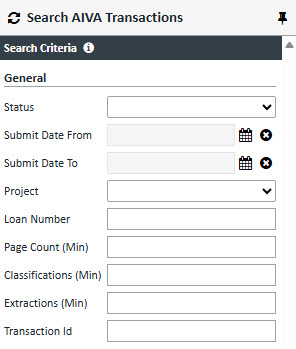
Search AIVA Transactions:
Search Parameters
You can refine your search by selecting one or multiple options:
-
Status
Filter by transaction status:- processing
- complete
-
Submit Date From
Enter or select the start date for the search range. -
Submit Date To
Enter or select the end date for the search range. -
Project
Choose the project type:- Loan Documents (default)
- Servicing Documents
-
Loan Number
Enter the LOS loan number for the transaction. -
Page Count (Min)
Specify the minimum total page count for the transaction. - Classifications (Min)
Specify the minimum total page count for the transaction.
- Extractions (Min)
Specify the minimum total page count for the transaction.
-
Transaction Id
Enter the transaction Id.
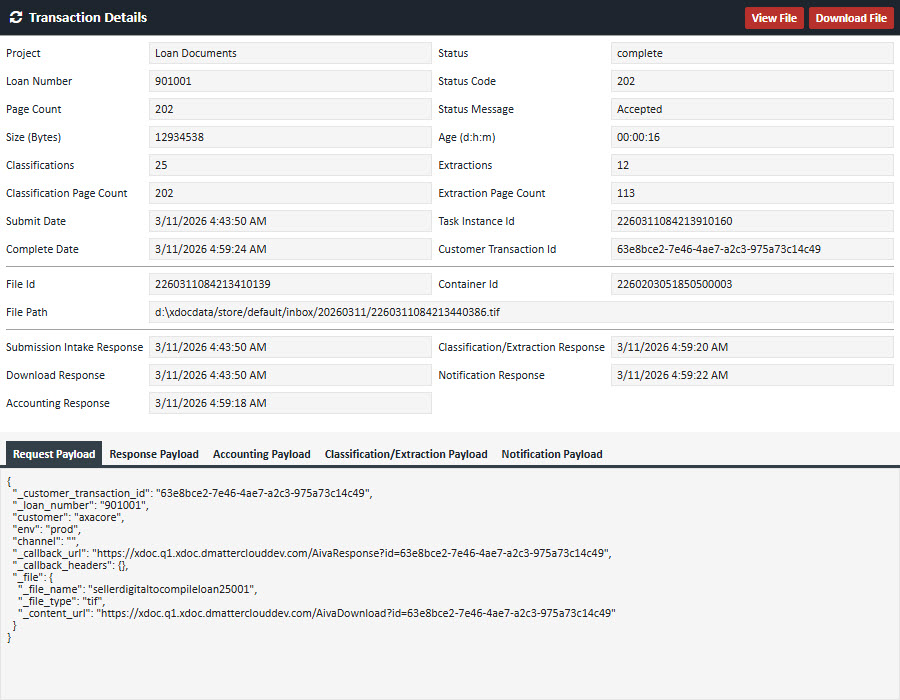
Transaction Details
To view transaction details:
- Highlight the row of the transaction you want to inspect.
- Double-click the row.
→ The Transaction Details screen will appear. - To copy the Request and Response XMLs, use the tabs located at the bottom of the screen.
View File
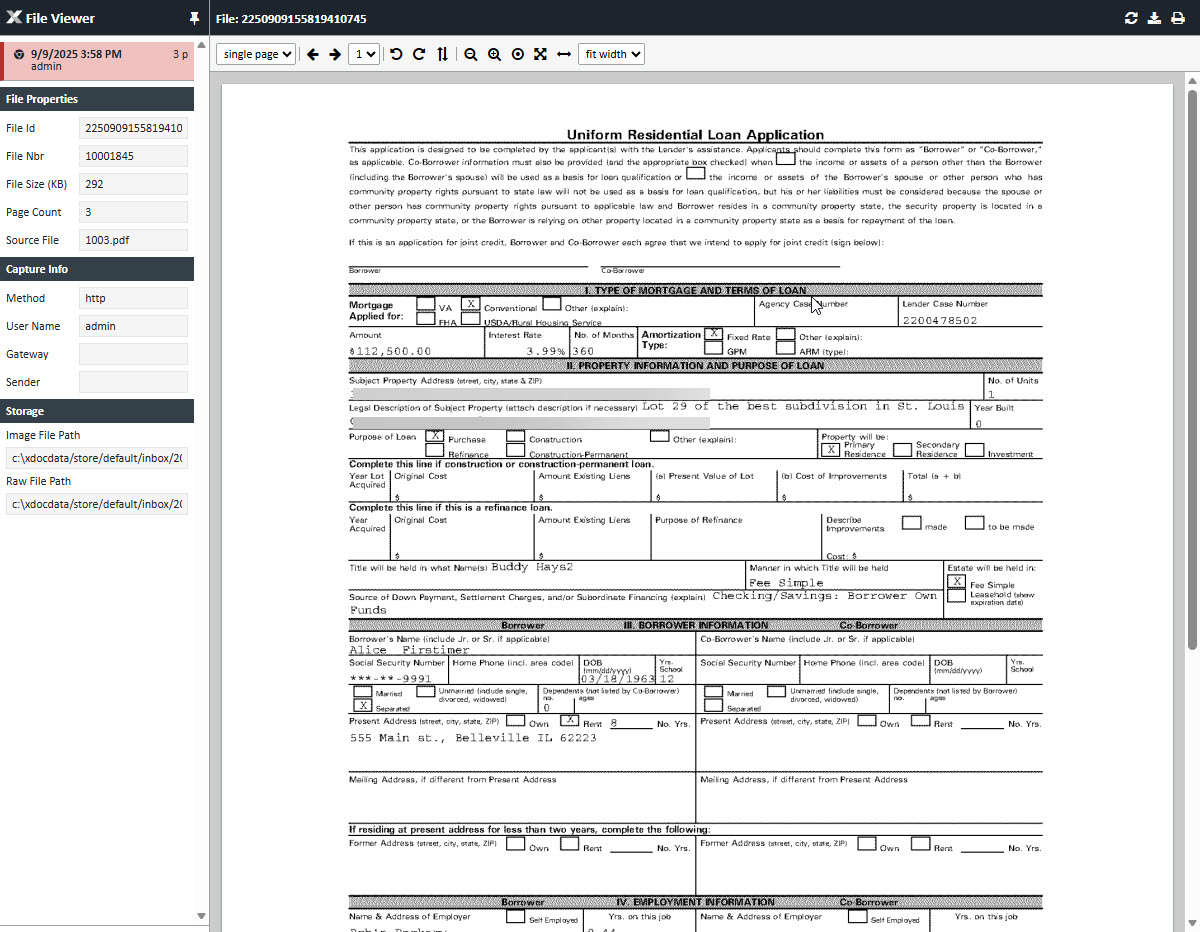
To view a file from the Transaction Details screen:
- Click the red View File button.
→ A new File Viewer window will open with the selected document. - Use the Download or Print options if needed.
Download File
To download the selected transaction file:
- Click the red Download File button.
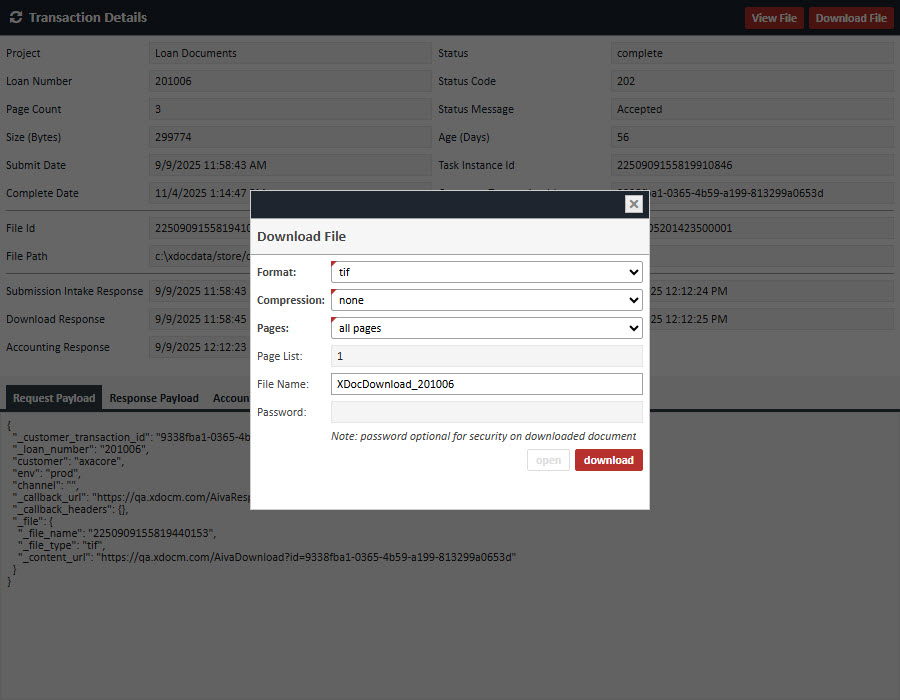
→ The Download File pop-up will appear with the following options:
Options:
- Format:
tif(default)pdf
- Compression:
none(default)zip
- Pages:
all pages(default)specific page list
- Page List:
- Defaults to the total number of pages in the document.
- If specific page list is selected, enter any range (e.g.,
1-4or1,3-6).
- File Name:
- Defaults to
XDocDownload_LoanNumber(e.g.,XDocDownload_201006). - Can be edited before downloading.
- Defaults to
- Password:
- Enter if required.
Buttons:
- Open:
- Downloads automatically to the Downloads directory.
- Available only when Format is
pdf.
- Download:
- Downloads to the Downloads directory.
Important:
It is recommended to view tif files to use the Windows Photo Viewer application.