
Splitting Documents
Splitting Documents
Sometimes you need to break a single document into smaller documents. XDOC makes this easy with the Split/Merge function.
Steps
-
Open Document Viewer
- Select the document you want to split.
-
Click SPLIT/MERGE
- Located on the upper right of the Viewer next to the UPDATE button.
- Note: If the document type is Unfiled, the button may say Index instead of Split/Merge.
→ This means you’re indexing the document to a specific type.
NOTE: For the Unfiled document type, the label of this button may say "Index" instead of "Split/Merge" but it does the same thing. When a document is labelled as "Unfiled" it needs to be indexed to a more specific document type, which is what you are doing with this function.


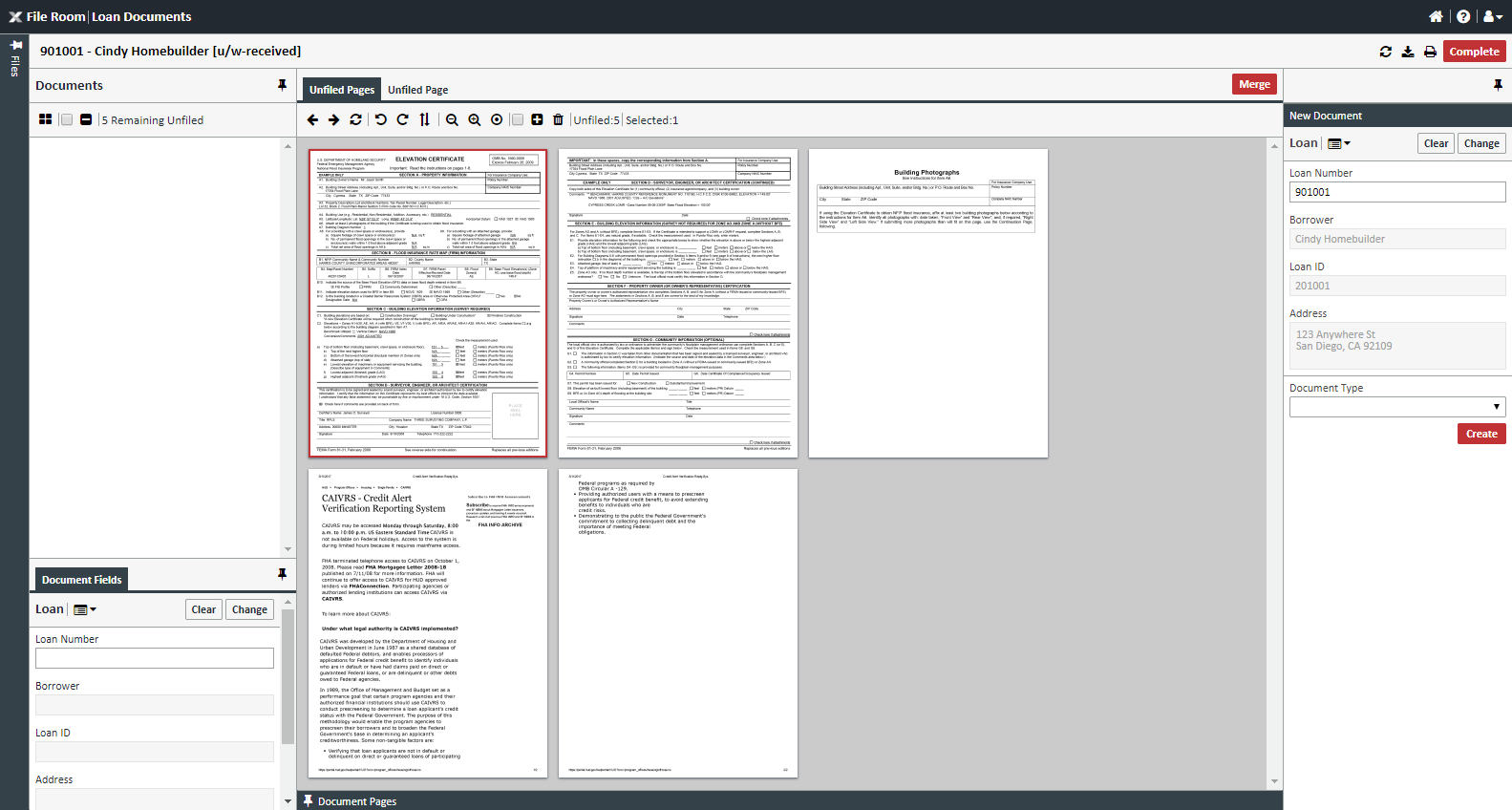
3. Pop-Out Window
- The document opens in a separate window.
4. Select Pages
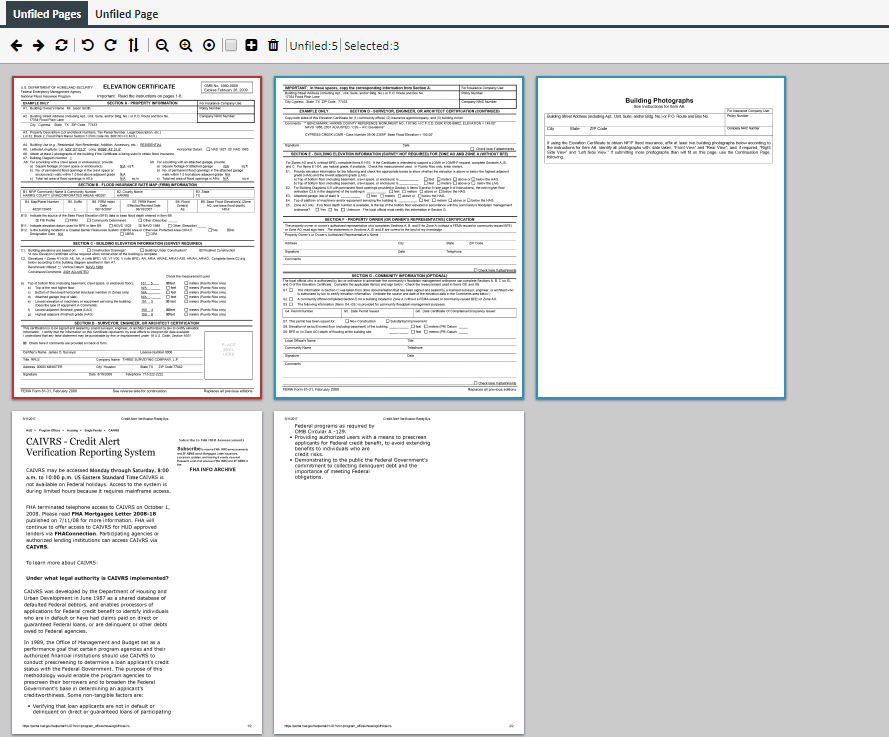
- Go to the Unfiled Pages tab.
- Select pages to split:
- First selected page = red border.
- Additional pages = blue border.
- Use:
- Ctrl + Click for multiple non-consecutive pages.
- Shift + Click for consecutive pages.
5. View Larger Page
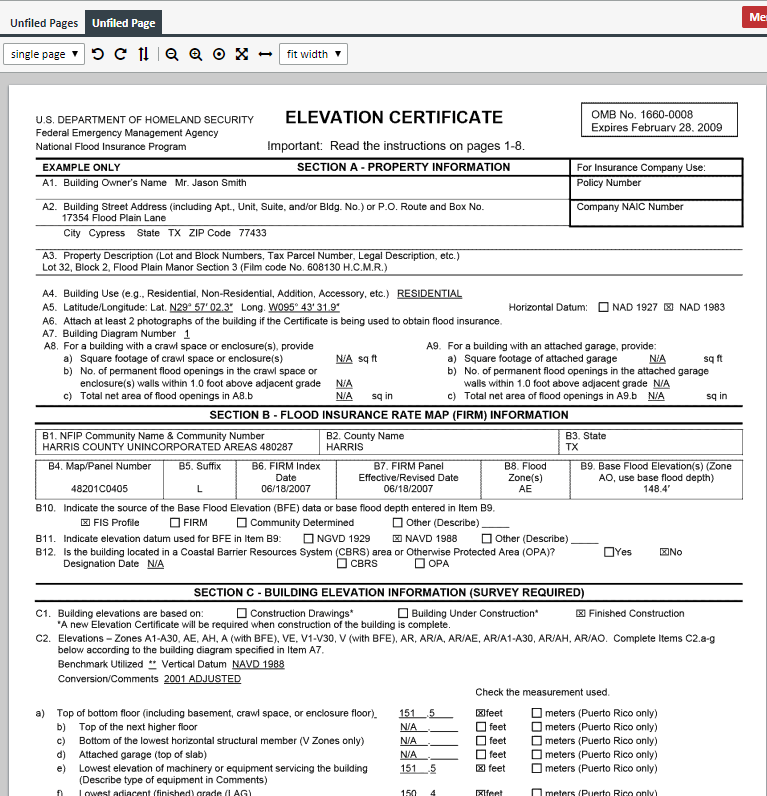
- Double-click a thumbnail to view full screen.
- Double-click again to return to thumbnails.
6. Assign Pages to a Document
- Option 1:
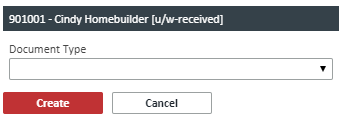
- Right-click selected pages → Quick Assign window pops up.
- Choose Document Type and fields → Click CREATE.
- Option 2:
- Use the right-hand pane to select Document Type and fields.
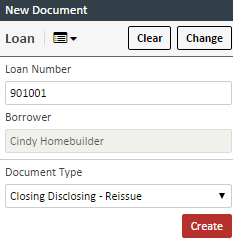
7. Repeat for All Pages
- Continue until all pages are assigned.
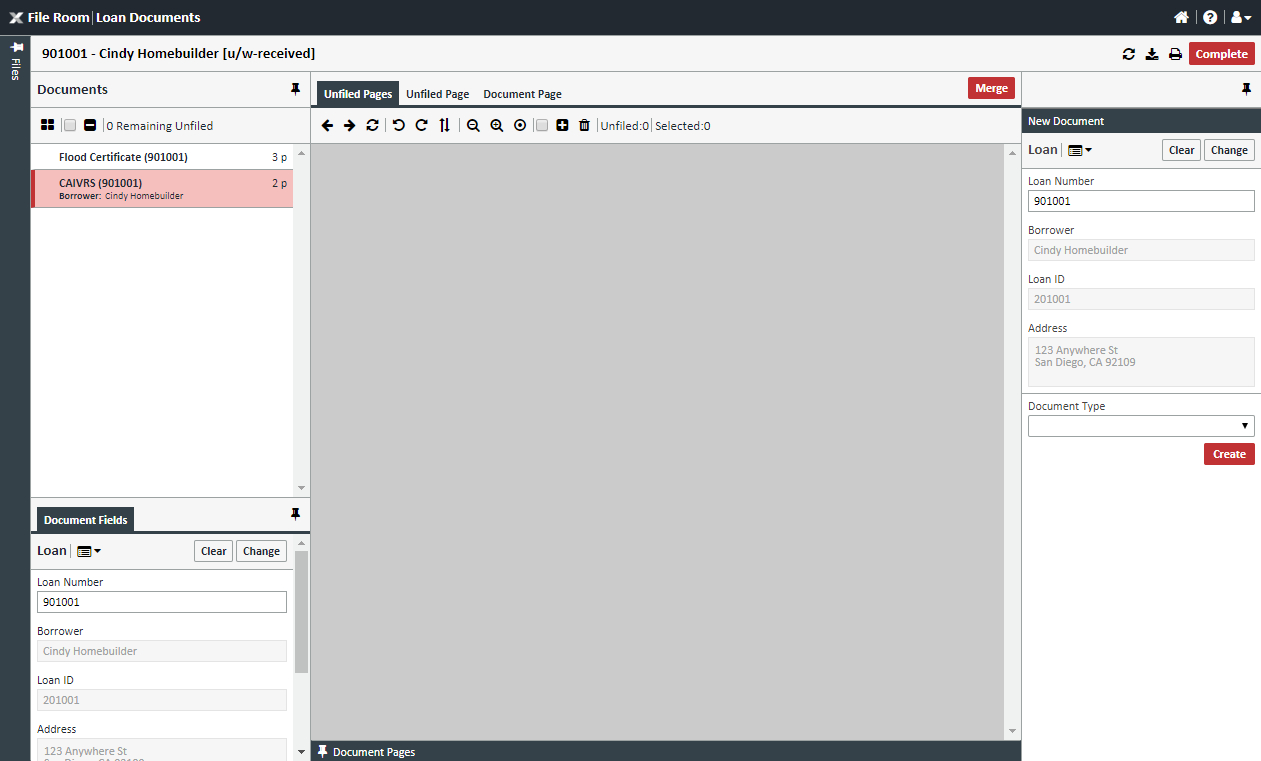
8. Click COMPLETE
- Finalize the split process.
Note:
The original document may still appear in the Document Viewer depending on admin configuration.