
Installing the Print Client
XDOC Print Client Installation Guide
XDOC offers two methods for installing the Print Client:
- Standard Installation
- Silent / Very Silent Installation
1. Standard Installation
Follow these steps for a guided installation:
- Extract the Print Client installation files to your desired location.

2. Locate and run Install_XDOC_Print_Client_v108_x64.exe:
- Right-click and choose "Run as Administrator".
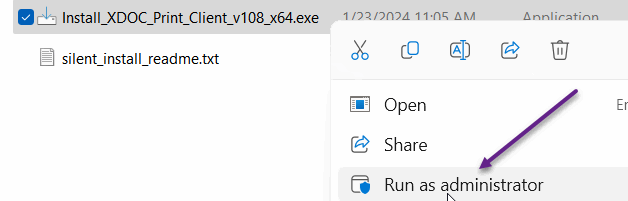
3. If prompted by User Account Control, click Yes to proceed.
4. On the initial install screen, click Next.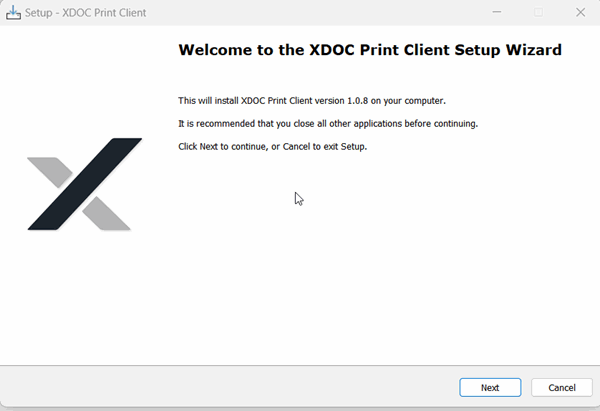
5. Choose the destination folder for the installation and click Next.
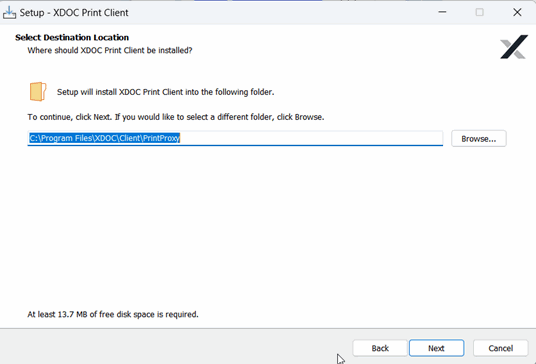
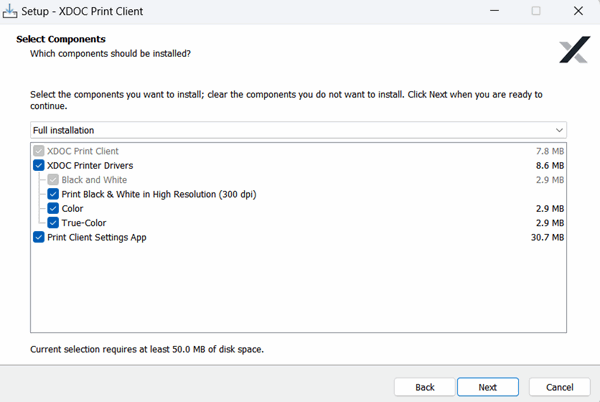
6. Select components and printers to install:
- The Print Client Settings App allows you to manage settings post-install.
- You may create a shortcut to this app after installation.
- Click Next when ready.
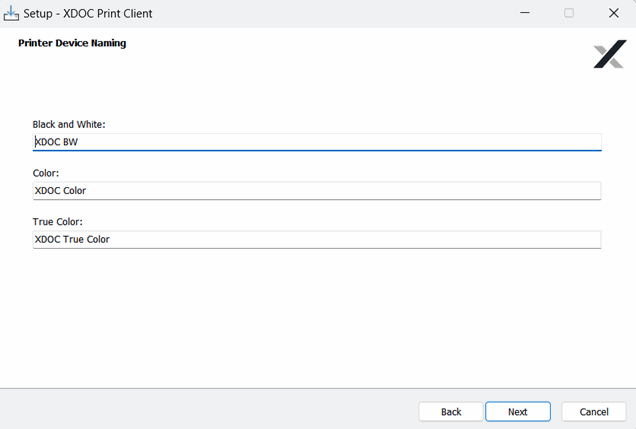
7. Printer Naming Options:
- You can customize printer names or use the defaults.
- Click Next.
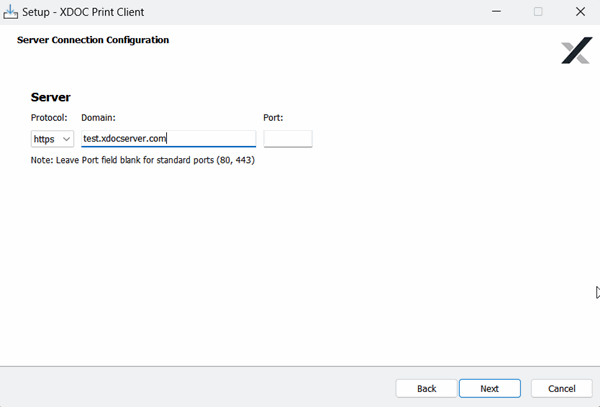
8. Enter server connection details:
- Protocol:
httporhttps - Server name
- Port number
- Click Next.
9. Choose the Start Menu folder for program shortcuts. Click Next.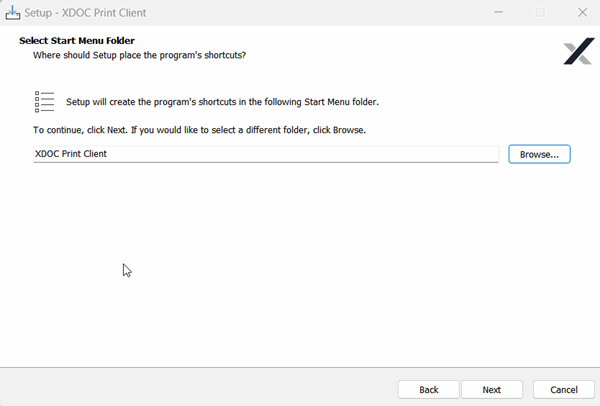
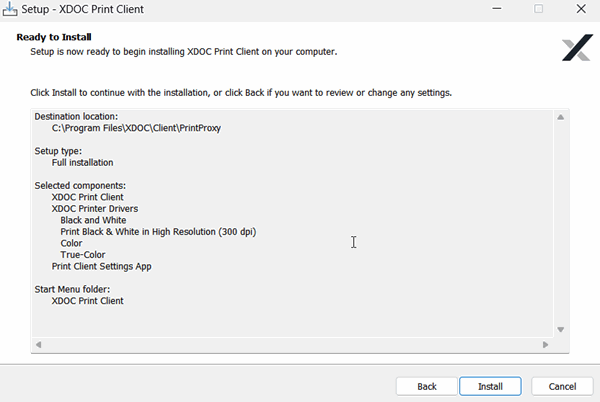
10. Review your settings:
- Click Back to make changes, or Install to proceed.
11. Once installation completes, you’ll see a confirmation screen.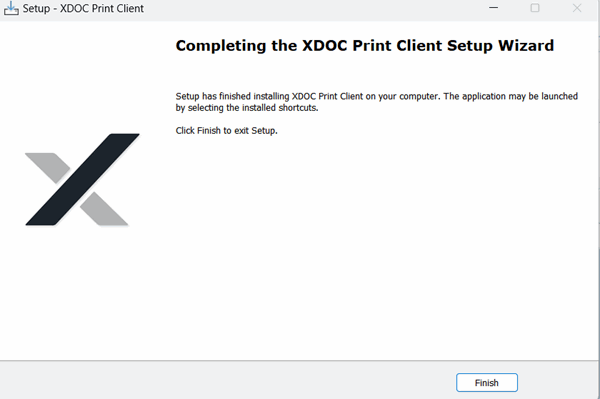
2. Silent / Very Silent Installation
For automated or large-scale deployments:
-
Extract the installation files.
-
Open the
silent.install.readme.txtfile for detailed instructions.
3. Configure the axInstall.cfg file:
-
- Set the server domain and other desired options.
4. Run the installer from the command line using one of the following:
- Install_XDOC_Print_Client_v108_x64.exe /SILENT
or
- Install_XDOC_Print_Client_v108_x64.exe /VERYSILENT
Note:
/SILENTshows minimal UI./VERYSILENTsuppresses all UI for a completely silent install.
Install Configuration settings
In the axInstall.cfx file the following settings can be modified:
Section [config]
You can easily update the axinstall.cfg file by right‑clicking it and opening it in a text editor (for example, Notepad++). Modify the settings as needed, then save your changes and repackage the ZIP file.
Once complete, you can distribute the updated package to your users to provide an even faster and smoother experience.
-
secondsToLaunch
The default value is 3 seconds. If a faster (more streamlined) launch is desired, this value can be reduced to less than 3 (for example, 0). -
timeoutMsec
The default value is 30000 seconds (10 minutes). This value can be adjusted as needed; however, it is difficult to reliably test and confirm its behavior across all scenarios. In addition, the browser may eventually override this setting, which is why the default is set to 30000.