
Document Compare
Document Compare Overview
This feature allows users to view two or more documents side by side in the Document Viewer. It’s useful for:
- Comparing different documents in a loan.
- Comparing different versions of the same document.
Steps to Use Document Compare
-
Highlight Documents
- In the Document Viewer, select one or more documents you want to compare.
-
Click Compare Icon
- Located in the Action Toolbar on the right side of the Viewer.
-
New Tab Opens
- XDOC launches a new tab with the Compare Interface, displaying selected documents side by side.
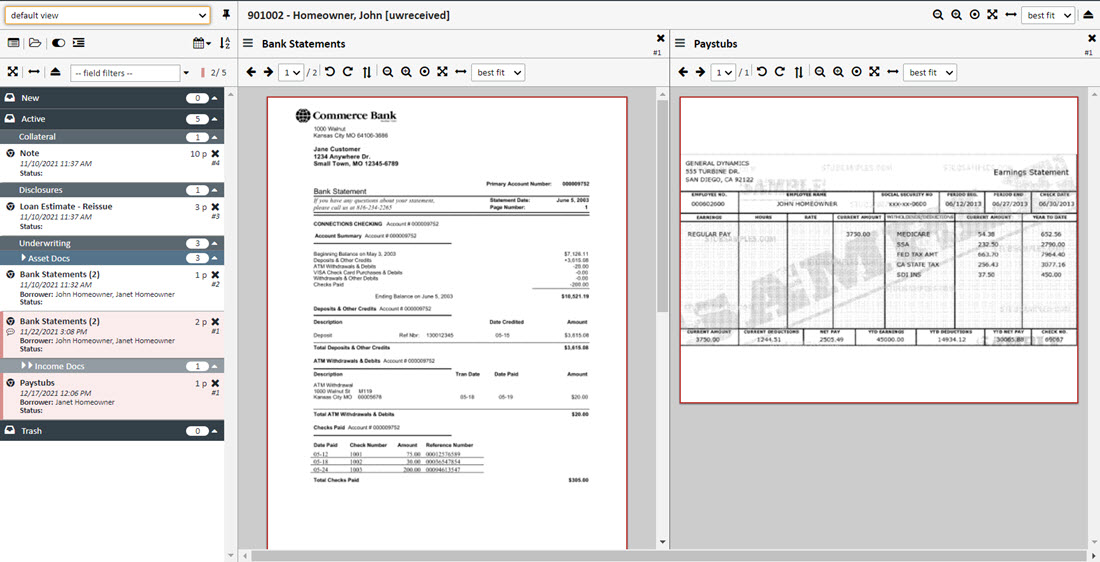
Adding a Document to Compare
- From the Document List, click and drag the document you want to compare to the right side of the screen.
- Release the mouse—the document will appear in the compare window.
Removing a Document
- Click the X at the upper-right corner of the individual document window.
Controls for Each Document Window
Each compare window has its own set of controls:

 - Go to previous page of doc
 - Go to next page of doc
 - Page counter. Click on the arrow to navigate to specific page
 - Rotates the page counter-clockwise
 - Rotates the page clockwise
 - Rotates the page 180 degrees
 - Zoom out
 - Zoom in
 - Zoom reset. Resets size to how it was originally.
 - Best fit
 - Fit width
 - Zoom indicator. You can choose from a list of magnifications here.
Toolbar for Compare Mode
- Located on the upper right of the screen.
- Controls apply to all documents being compared.
- Common toolbar functions:
- Zoom In/Out
- Rotate Pages
- Print/Download
- Reload
- Close All Compare Windows (last icon).

Compare Different Versions
- To compare versions of the same document:
- Simply click on the different versions in the Document List.
- Drag them into the compare window (right side of the screen).
- Each version will open in its own pane for side-by-side comparison.