
Classifications
AIVA Classifications
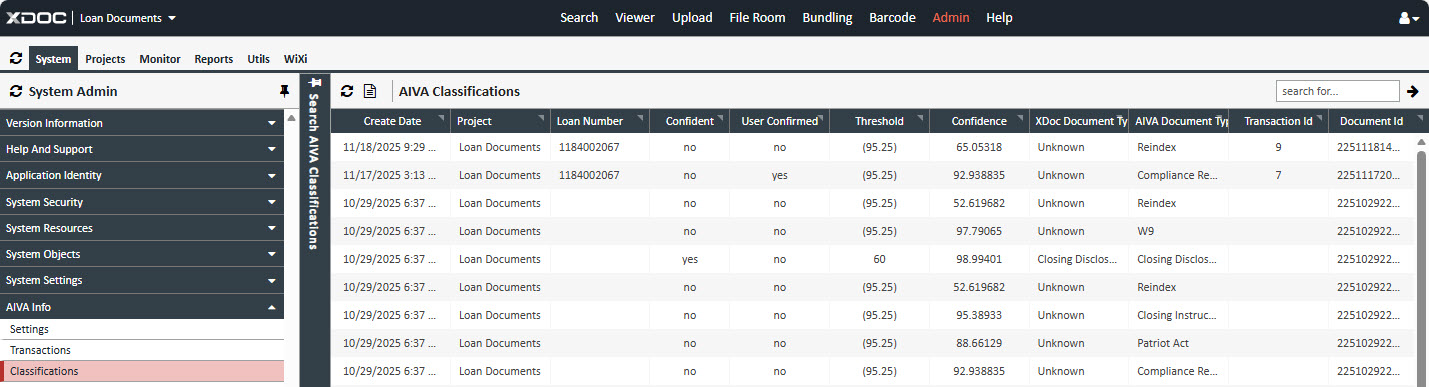
Shows AIVA Doc transactions along with:
-
- XDOC & AIVA Doc types.
- Classifications (categories or document types).
- Confidence levels (how certain the system is about the classification)
Field Definitions
- Create Date
The date and time when the AIVA document classification transaction was received. - Project
Indicates the type of project: - Loan Document (default)
- Servicing Documents
- Loan Number
The LOS (Loan Origination System) loan number. - Confident
Boolean indicator: - Yes if aivascore ≥ threshold
- No otherwise.
- User Confirmed
Based on review tags: - No if Yellow Review Tag
- Yes if Green OCR Verified Tag.
- Threshold
- If in parentheses (e.g., (95.25)): value from Admin → System → AIVA Info → Settings → Default Confidence.
- If without parentheses (e.g., 96.24): value from Admin → Projects → AIVA Info → Document Recognition Mapping → Confidence %.
- Confidence
The AIVA score (AIVASCORE). - XDoc Document Type
The XDOC document name as defined in Admin → Projects → Project Repository → Document Definitions → Name. - AIVA Document Type
The AIVA document name as defined in Admin → Projects → AIVA Info → Document Types → AIVA Document Name. - Transaction Id
Unique identifier for the highlighted transaction, that identifies the particular Transaction from the Admin → System → AIVA Info → Transactions screen. - Document Id
Unique identifier for the document within the highlighted transaction.
Search Criteria
-
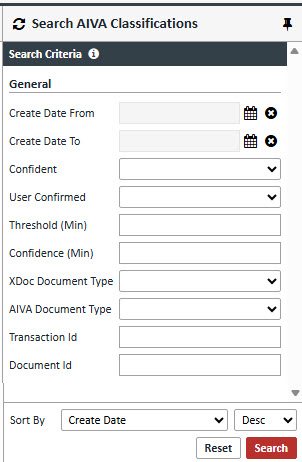
You can refine your search by selecting one or multiple options:
- Create Date From
Enter or select the start date for the search range. - Create Date To
Enter or select the end date for the search range. - Confident
Select the Yes or No confident level - Threshold (Min)
Enter the minimum threshold level. - Confidence (Min)
Enter the minimum confidence level. - XDoc Document Type
Select the desired document type.
- AIVA Document Type
Select the desired document type.
- Transaction Id
Enter the transaction Id. - Document Id
Enter the transaction Id.
- Create Date From
Viewer
When the highlighted Classification is selected the XDOC Viewer will be displayed.