
Bundle Profiles
Bundle Profiles
Bundle Profiles define where a packaged bundle is delivered. While a Bundle Profile includes basic packaging options, we recommend using a Bundle Template to manage packaging configurations whenever possible.
The Bundle Profiles configured in this section are displayed in the Document Viewer when users select the Bundle action from the toolbar.
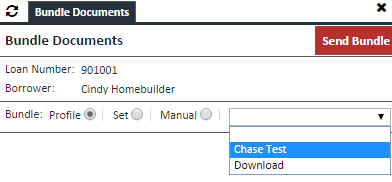
Creating a Bundle Profile
- Navigate to the Bundle Profiles page.
- Click Create.
- The Bundle Profile Editor is displayed.
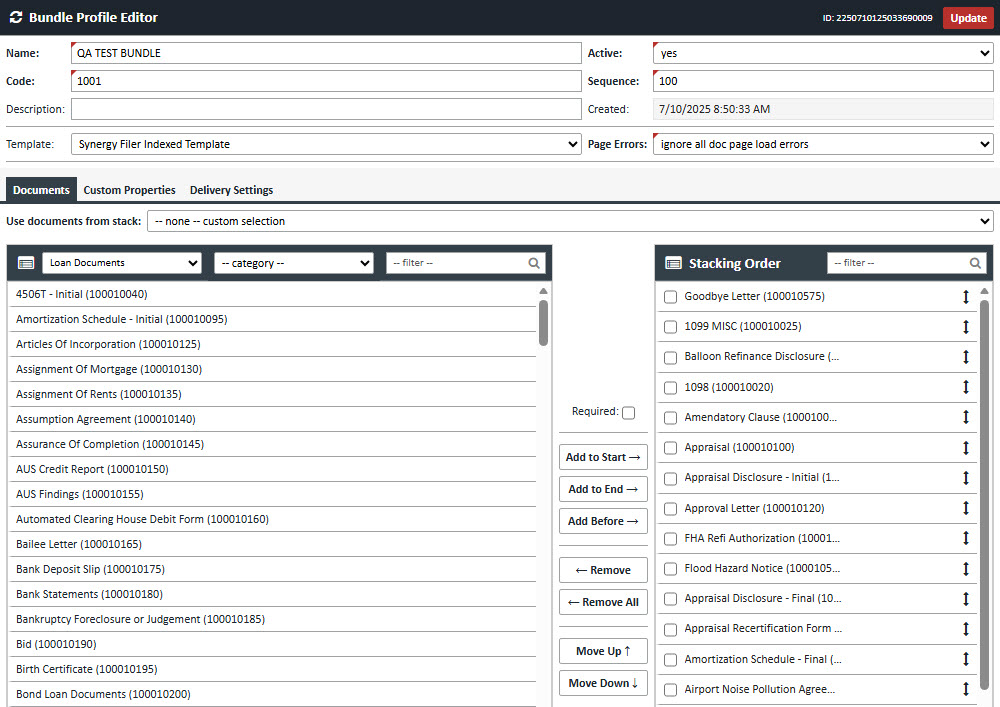
4. Complete the fields described below.
Bundle Profile Editor
| Field | Description |
|---|---|
| Name | Enter a name for the Bundle Profile. |
| Code | Enter an internal code for the profile. For simplicity, this can be the same as the profile name. |
| Description | Enter an optional description. |
| Active | Set to Yes to make the profile available in the Viewer. |
| Sequence | Determines the display order of Bundle Profiles in the list. |
| Page Errors | Defines how XDOC handles missing or corrupted documents during bundle generation. See available options below. |
| Template | Select a Bundle Template to apply predefined packaging and delivery settings. When a template is selected, some profile settings are hidden because they are managed by the template. |
Page Error Options
| Option | Description |
|---|---|
| Abort on page load error | Stops bundle generation if a missing or corrupted document is encountered. |
| Ignore non-required page load errors | Continues processing and ignores missing or corrupted documents that are not marked as required. |
| Ignore all document page load errors | Continues processing regardless of missing or corrupted documents, including required documents. |
Any documents skipped due to missing or corrupted pages are displayed in the Bundle Execution screen when the bundle is sent.
Documents Tab
The Documents tab defines which documents are included in the bundle.
| Field | Description |
|---|---|
| Use Documents From Stack | Select the document stack to use for the bundle. Using document stacks is strongly recommended. |
| Use Document Names From | Select a naming stack when recipients require document names that differ from XDOC document type names. |
| Manual Document Selection |
If a document stack is not used, manually select the document types to include in the bundle.
|
| Document Filter |
Allows quick searching and filtering of document types when creating or modifying a document list.
|
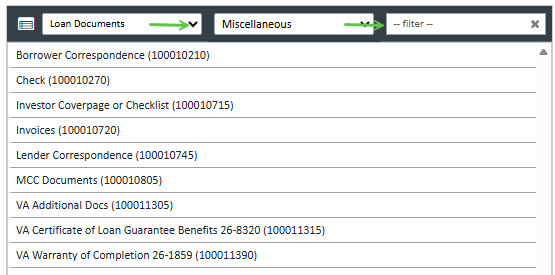
Manual Document Selection
When not using a document stack:
- Select document types from the available list.
- Click Required or Optional to add documents to the bundle.
- You can also double-click a document type to move it to the selected list.
- Use Move Up and Move Down to control document order.
- Multiple documents may be selected using:
- Ctrl + Click
- Shift + Click
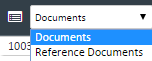
- Use the selector above the document list to switch between Documents and Reference Documents.
Packaging Tab
The Packaging tab determines how documents are packaged before delivery.
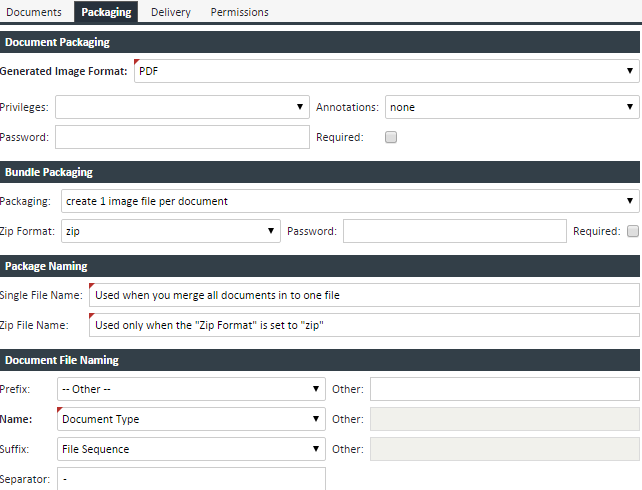
Document Packaging
| Field | Description |
|---|---|
| Generated Image Format | Specifies the output format for generated documents (PDF or TIF). |
| Privileges | Defines PDF recipient permissions. Note: Leaving this field blank grants all permissions and is generally recommended. |
| Annotations | Specifies which annotations are included. Only Permanent and Public annotations can be exported. Personal annotations cannot be included. |
| Password | Defines an optional password for generated PDF documents. |
| Required | If selected, users must enter a password when sending the bundle. |
Bundle Packaging
| Field | Description |
|---|---|
| Packaging | Choose whether to create a separate file for each document or merge all pages into a single file. |
| ZIP Format | Choose ZIP or None. ZIP packaging is required when generating one file per document. |
| Password | Specifies the default ZIP file password. |
| Required | If selected, users must enter a ZIP password during bundle delivery. |
Package Naming
| Field | Description |
|---|---|
| Single File Naming | Name assigned to the output file when all documents are merged into a single file. |
| ZIP File Naming | Name assigned to the ZIP package. |
| Document File Naming | Defines how individual document filenames are generated. Files can include a prefix, name, and suffix separated by a configurable delimiter. |
Document File Naming Components
| Field | Description |
|---|---|
| Prefix | Text added at the beginning of the filename. |
| Name | The primary filename value. |
| Suffix | Text added at the end of the filename. |
| Separator | Character used to separate filename components. |
Example: If the separator is a dash (-), the filename is generated as:
Prefix-Name-Suffix.pdf
Delivery Sub Tab
The Delivery tab determines how the completed bundle is delivered.
| Delivery Method | Description |
|---|---|
| Download | Prompts the user to download the bundle locally. |
| HTTP | Sends the bundle using an HTTP POST request to a specified endpoint. |
| FTP | Delivers the bundle using FTP. This method is rarely used and is not secure. |
| File | Delivers the bundle to a network folder. The XDOC IIS service account must have access to the destination folder. |
| SFTP | Securely transfers the bundle using SFTP. This is the most common delivery method for external recipients. Using a Bundle Template is strongly recommended when configuring SFTP delivery. |
Permissions Sub Tab
The Permissions tab controls which options users may override when sending bundles.
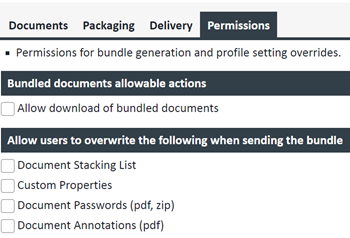
Bundled Documents Allowable Actions
| Field | Description |
|---|---|
| Allow Download of Bundled Documents | Allows users to override the configured delivery method and download the bundle locally. This is useful for testing and validation. |
Allow User to Override the Following When Sending the Bundle
| Option | Description |
|---|---|
| Document Stacking List | Allows users to modify the document list included in the bundle. |
| Custom Properties | Allows users to modify custom property values. |
| Document Passwords | Allows users to change document password settings. |
| Document Annotations | Allows users to modify annotation settings. |
Saving the Bundle Profile
After all configuration options have been completed:
- Click Save.
- Generate and send a test bundle to verify the packaging and delivery settings are configured correctly.
Best Practice
For most implementations, use a Bundle Template to manage packaging and delivery settings. This reduces configuration complexity, promotes consistency, and simplifies maintenance across multiple Bundle Profiles.Activate or Deactivate a Bundle Profile
- Navigate to Bundle Profiles.
- Verify that your account has the required administrative permissions.
- Select the desired Bundle Profile from the list.
- From the Actions drop-down menu, choose Activate or Deactivate.
- Confirm your selection when prompted.
- A confirmation message will be displayed indicating the action was completed successfully.
Delete a Bundle Profile
- Navigate to Bundle Profiles.
- Verify that your account has the required administrative permissions.
- Select the desired Bundle Profile from the list.
- From the Actions drop-down menu, choose Delete.
- Enter the Admin Password when prompted.
- A confirmation message will be displayed indicating the action was completed successfully.